
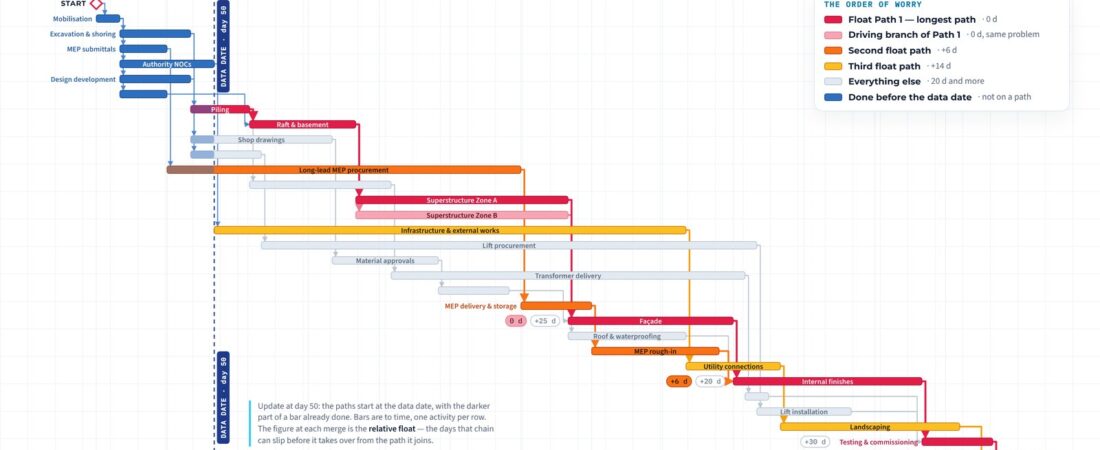
Float paths — the planning engineer’s order of worry.
By Ghulam Haider, Senior Planning Manager and Claims Consultant · PlanningShare
Every planning engineer knows the moment. The monthly controls meeting, the programme on the screen, and the first question from the top of the table:
“What is delaying the project?”
You answer it. The longest path, the activity at its head today, what it is waiting for, the date it produces. The room nods.
Then comes the question I have heard in more meetings than I can count, and the one that separates a planner who runs the schedule from a planner who is run by it:
“Fine. If we fix that — what is next?”
In other words: if we mitigate the critical path, which chain of work becomes the problem? And after that one? Management is not asking for a list of 2,000 activities. They are asking for the order of worry. That is exactly what Primavera P6’s multiple float paths give you — provided you know how to switch them on, how to read them, and when not to believe them.
What a float path is
The first float path (Float Path 1) is the longest path to the end activity you choose — normally Project Completion. It is the chain of driving relationships traced back from that activity to the data date. Zero relative float all the way along. This is the answer to “what is delaying the project?”
The second float path is the next most critical chain: the sequence that joins Path 1 with the least slack. If Path 1 is mitigated by more than that slack, the second path takes over as the critical path. The third path is the one after that, and so on.
The number that matters on every path after the first is its relative float — how many days that chain can absorb before it moves the end activity. Not its total float. Total float is distorted by calendars, constraints and the project finish; relative float is simply the gap at the merge.
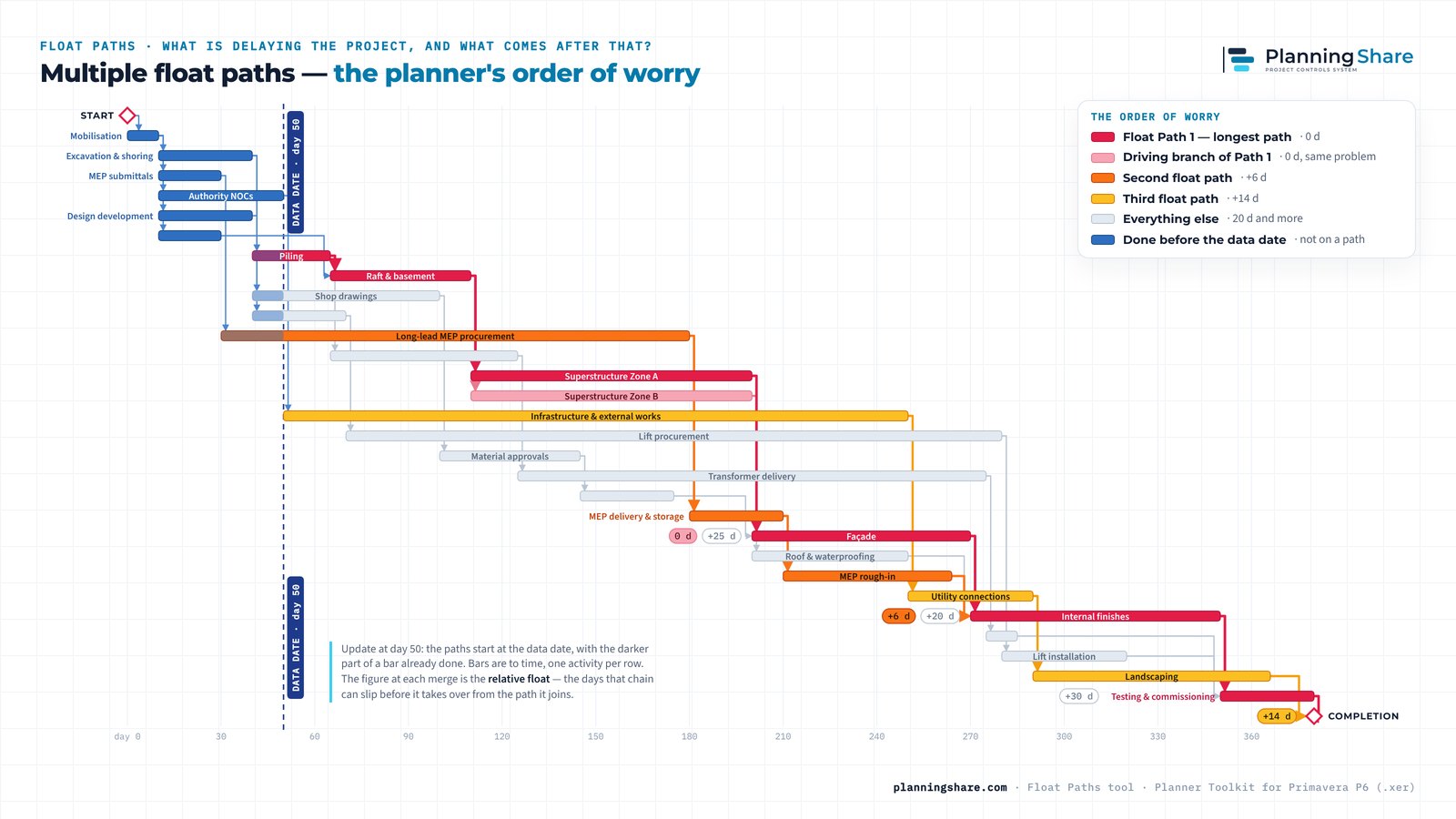
Take the building example in the picture — an update at day 50. Mobilisation and excavation are complete, so they are on no path at all; float paths start at the data date. Path 1 begins with piling, in progress on the data date, and runs through the raft, the superstructure, façade, internal finishes and testing to completion on day 380 (18 January 2028). The MEP chain — submittals, long-lead procurement, delivery, rough-in — joins the finishes six days before it would drive them: that is the second float path, with six days of relative float. The authority approvals and external works join completion fourteen days early: the third path. Everything else in the network has twenty days or more, and the meeting should not be spent on it.
One more thing the picture shows. Zone B of the superstructure is an equal parallel leg of Zone A. It carries zero relative float, so it is not “next” — it is part of the same problem. Accelerate Zone A alone and Zone B still holds the date. Keep that example in mind; P6 handles it in a way that catches people out.
Switching it on in Primavera P6
Tools → Schedule (F9) → Options… → Advanced tab. Four settings.
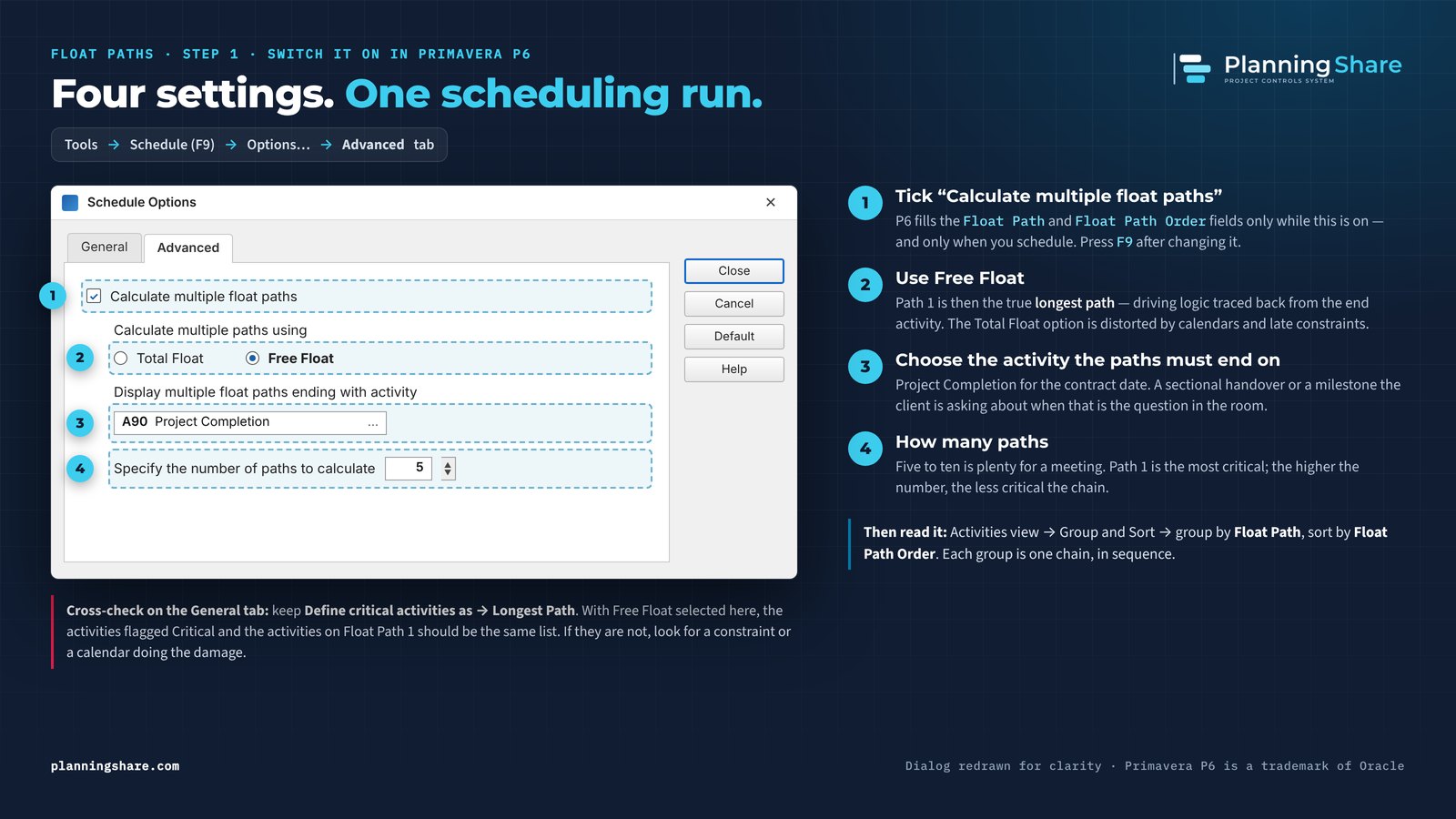
- Tick “Calculate multiple float paths”. P6 fills the Float Path and Float Path Order fields only while this is on, and only when you schedule. Change it, then press F9.
- Calculate multiple paths using Free Float. With Free Float, Path 1 is the true longest path — the same list of activities you get with “Define critical activities as Longest Path” on the General tab. The Total Float option works from relationship total float instead, which calendars and late constraints distort. Use Free Float unless you have a specific reason not to.
- Choose the activity the paths end on. Project Completion when the question is the contract date. A sectional completion or a handover milestone when that is the date the client is asking about — the paths to an interim milestone are often quite different from the paths to the end.
- Number of paths. Five to ten is plenty for a meeting. Path 1 is the most critical; the higher the number, the less critical the chain.
A useful cross-check: with Free Float selected, the activities flagged Critical (Longest Path) and the activities on Float Path 1 should be the same list. If they are not, a constraint or a calendar is doing the damage somewhere.
Reading the result
In the Activities view, group by Float Path and sort by Float Path Order. Each group is one chain, in sequence.
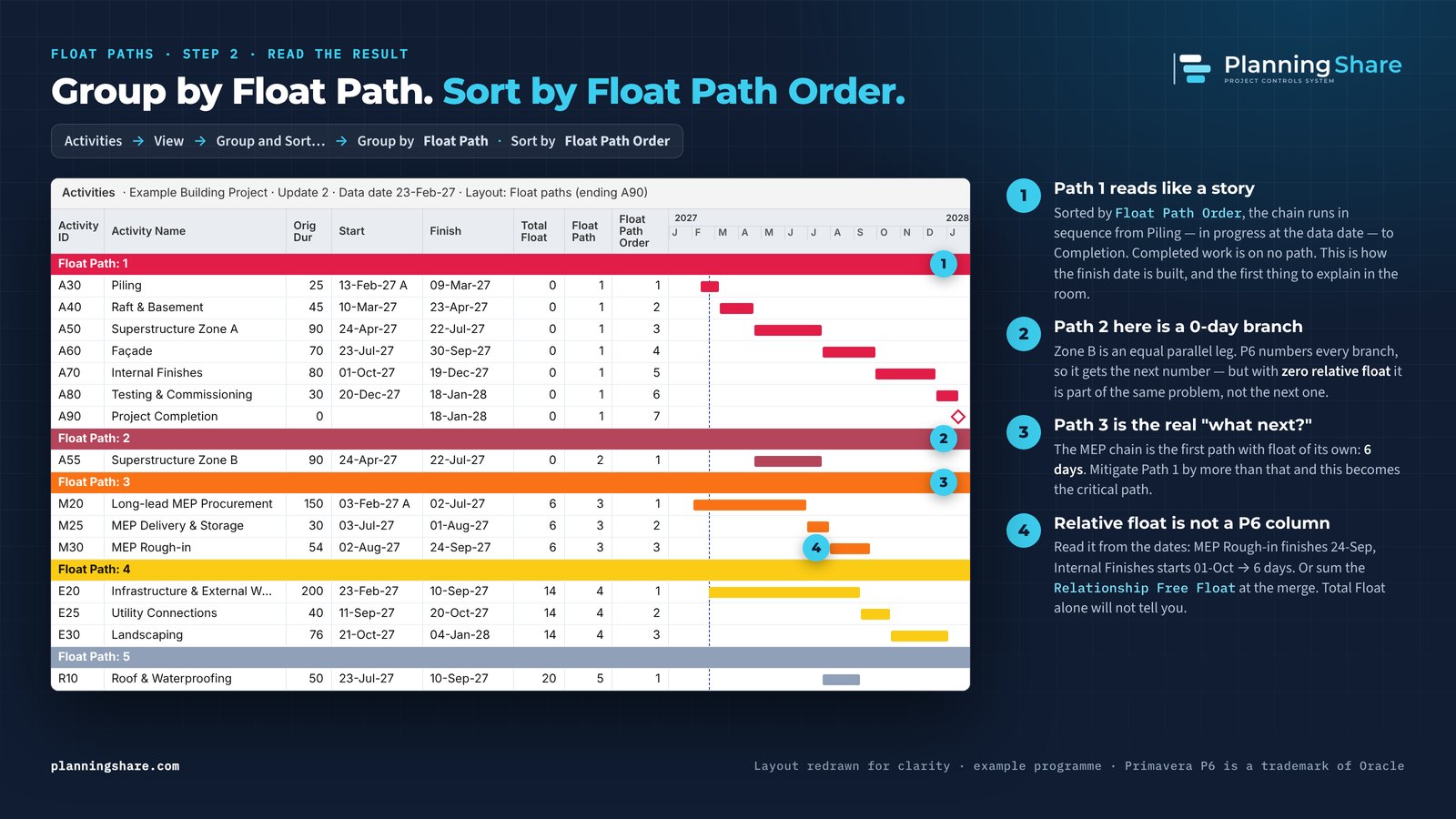
Path 1 reads like a story. Sorted by Float Path Order it runs from piling, in progress at the data date, to completion in the order the work happens. Completed activities are on no path. That is how the finish date is built, and it is the first thing to walk the room through.
P6 numbers every branch. Here is where the Zone B example matters. P6’s routine traces a single chain for each path. An equal parallel leg is therefore reported as its own float path — in the example, Zone B becomes Float Path 2 with zero relative float, and the MEP chain, the first path with any float of its own, becomes Path 3. The path number tells you the processing order. The relative float tells you whether it is a new problem or the same one. Read the float, not just the number.
Relative float is not a P6 column. You read it from the dates: MEP rough-in finishes on 24 September, internal finishes start on 1 October, so the chain has six days. Or you sum the Relationship Free Float at the merge. Either way, write the figure against each path before the meeting, because that figure is the answer to “what next?”
Before you present them: the reality check
P6 will rank whatever network you give it. A float path is only as honest as the logic behind it, and the planner’s job is to check that logic before the ranking goes in front of management.
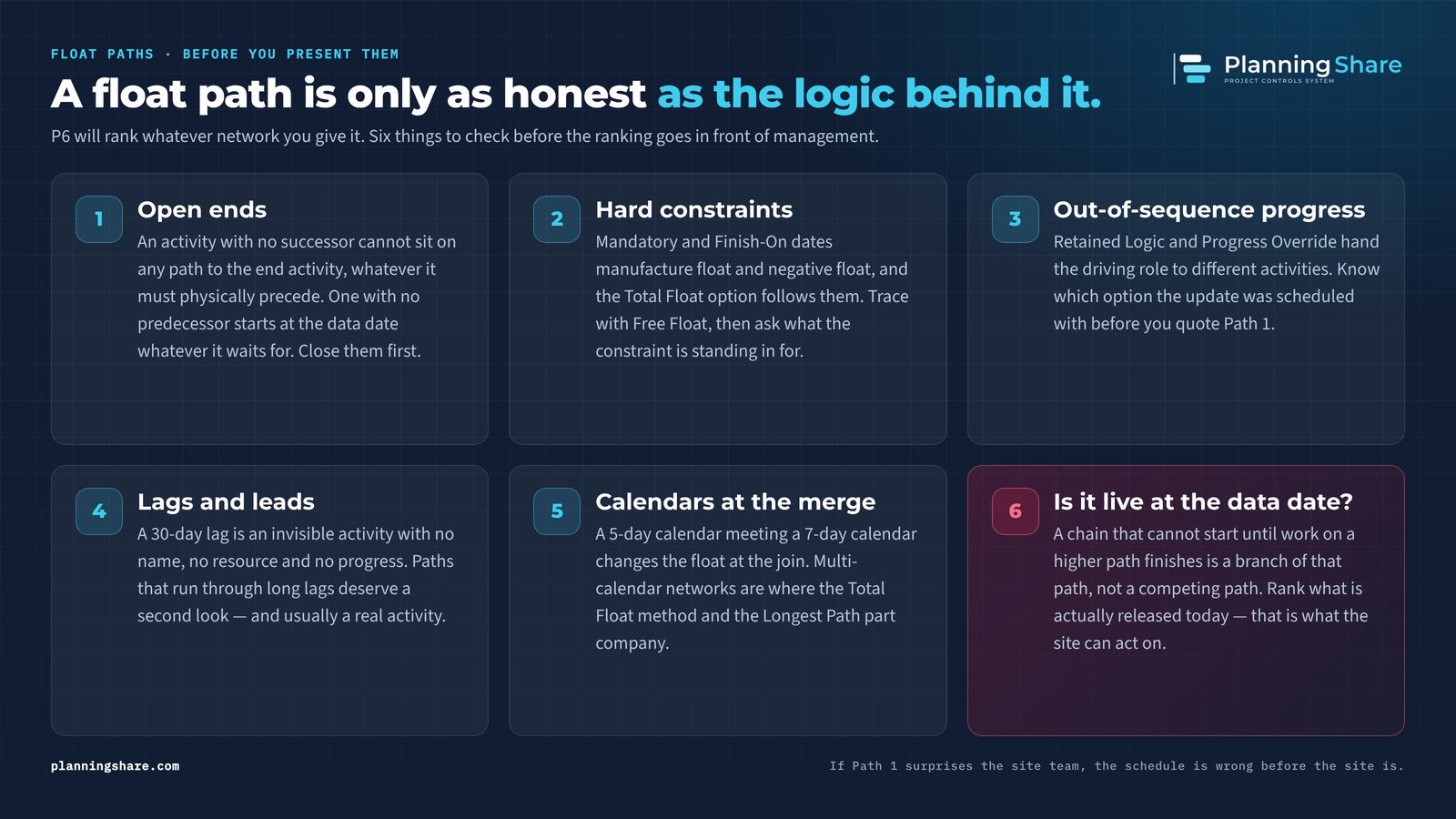
- Open ends. An activity with no successor cannot sit on any path to the end activity, whatever it must physically precede. An activity with no predecessor starts at the data date whatever it is waiting for. Close them first.
- Hard constraints. Mandatory and Finish-On dates manufacture float and negative float, and the Total Float method follows them. Trace with Free Float, then ask what the constraint is standing in for.
- Out-of-sequence progress. Retained Logic and Progress Override hand the driving role to different activities. Know which option the update was scheduled with before you quote Path 1.
- Lags and leads. A 30-day lag is an invisible activity with no name, no resource and no progress. Paths that run through long lags deserve a second look — and usually a real activity.
- Calendars at the merge. A 5-day calendar meeting a 7-day calendar changes the float at the join. Multi-calendar networks are exactly where the Total Float method and the longest path part company.
- Is the path live at the data date? A chain that cannot start until work on a higher path finishes is a branch of that path, not a competing path. What the site can act on today is what is actually released today.
If Path 1 surprises the site team, the schedule is wrong before the site is.
The same answer from the .xer file alone
Not everyone in the meeting has P6, and not every planner wants to re-schedule a 2,000-activity programme to answer a question. PlanningShare’s Float Paths tool reads the dates P6 itself wrote in the .xer file and traces the paths from them — no P6 licence, nothing uploaded, no size limit.
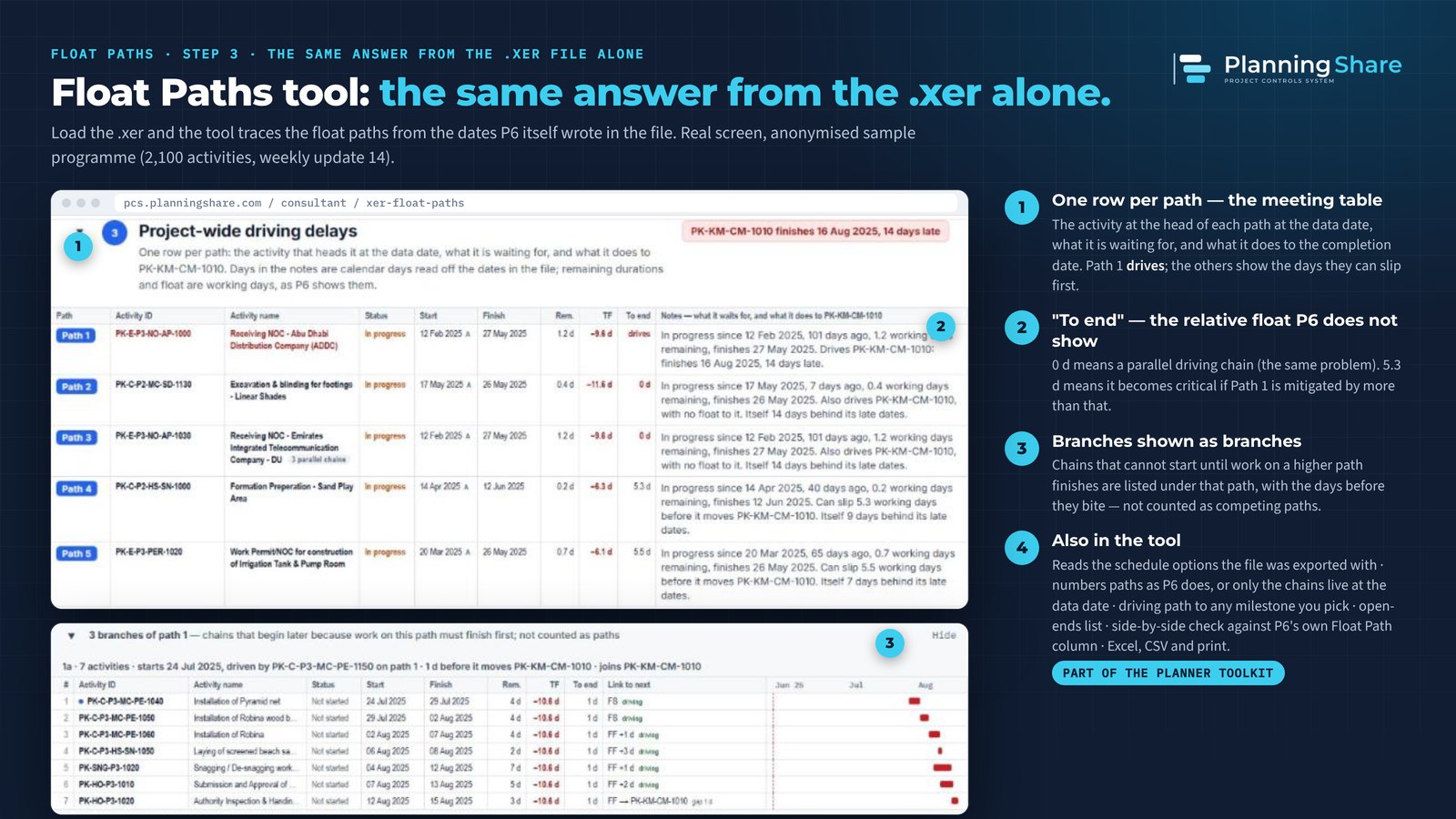
What it adds to the P6 output:
- One row per path — the meeting table. The activity at the head of each path at the data date, what it is waiting for, and what it does to the completion date.
- A “To end” column — the relative float P6 does not show. 0 d means a parallel driving chain; 5.3 d means it becomes critical if Path 1 is mitigated by more than that.
- Branches shown as branches. Chains that cannot start until work on a higher path finishes are listed under that path with the days before they bite, not counted as competing paths.
- Numbered as P6 numbers them, or only the chains live at the data date — your choice, with a side-by-side check against P6’s own Float Path column.
- The driving path to any milestone you pick, the schedule options the file was exported with, the open-ends list, and Excel, CSV and print output.
It sits in the Planner Toolkit alongside the XER Viewer, Baseline and Update Analysis, Compare, XER to Excel and XER Slimmer — the everyday tools for working with Primavera P6 files — and the 20 project-controls modules are there when you are ready for them.
Know your paths
A planner who knows Path 1, Path 2 and Path 3 — and has checked that the logic behind them is real — never gets caught by “and what next?”. The schedule stops being a Gantt chart that gets updated and becomes the instrument you actually track the project with.
Know your paths. Track the project, not the Gantt.
PlanningShare — project controls and claims management for contractors, plus everyday Primavera P6 tools for planning engineers. planningshare.com/tools · contact@planningshare.com · WhatsApp +92 300 6812023